| Click Here > | [−] |


This should delete all of the picture except what was inside the frame.


Another way (or you can do the former and then ALSO do this) is by using the Hue, Saturation, and Brightness Jitter sliders.
Play around with these settings, and you can achieve all kinds of color variations!
Other Brush Tips from Obsidian Dawn:
Under Brush Tip Shape Spacing: This will make the brush closer together or farther apart
Under Shape Dynamics Size Jitter: This will make the size vary more or less
Minimum Diameter: This will dictate the minimum size that the brush will be (as its varying in size)
Under Scattering Scatter: This makes the brush scatter about more or stay more along the path that you’re painting
Under Other Dynamics Opacity Jitter: This makes the brushes vary in opacity as they are painted - more or less


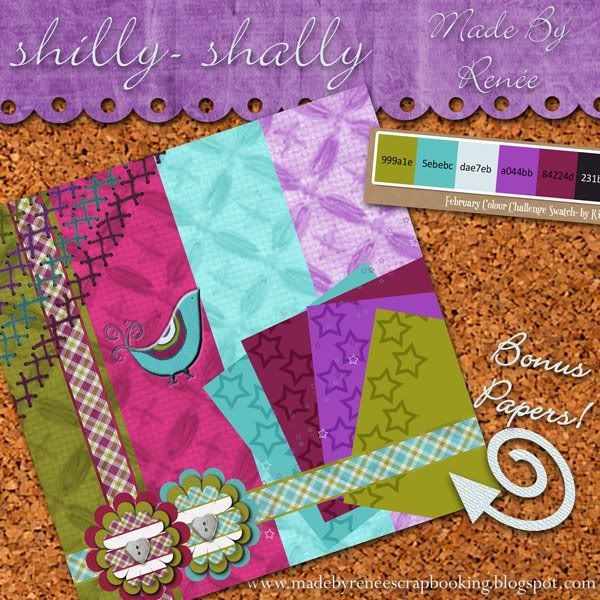
The Great Exchange - February 2009 Join us each month as we create items to
share! Create one item to share and receive ALL that month's creations in
return. We will feature a different Designer and/or product each month
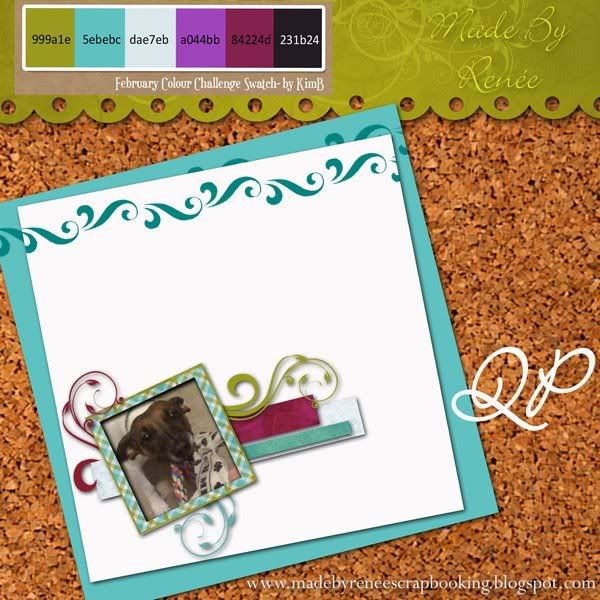
sounds fun doesn't it? and you can get my cute little quickpage made with kimb's Fresh Posey!

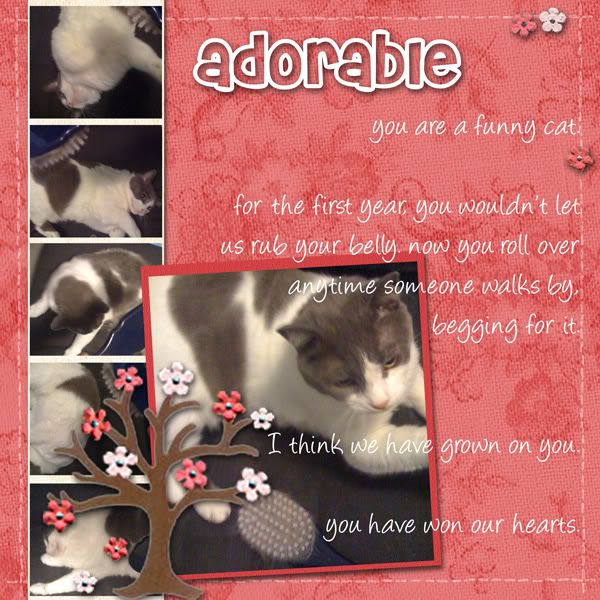
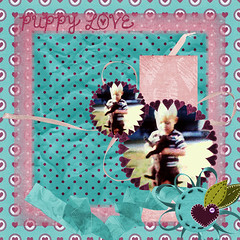
This is for Doodle's Dare Feb challenge at DSO.
Here is your DARE.
You will need to complete a layout using all of the following. The
theme is "LOVE"2 photos
3 different ribbons
4 papers (they can be solid or pattern)
2 frames
journaling
stitching
1 felt element (anything felt)
Now remember, you can add to this list, but you can not take away
or replace. You have to use everything in this list on your layout.
I used:
Shazbutt I luff you heart paper
andrea dickinson Delightful pink paper (posting bonus)
The Queen and The Princess Designs: felt heart, teal (flower shaped) ribbon
WenchdGrafix Designs saucy teal dot paper
crops2dawn crinkly teal ribbon
beth long pink ribbon and pink heart paper (posting bonus)
LPand3Dogs heart frames
Dani Mogstad pinky alpha
PS I originally forgot to add journalling to my LO.. so the one on the forums has that added.

Brads, eyelets, corners, other small elements - 3x3 canvas
Tags - 4x3 canvas; several minitags can be put on the same canvas.
Alphas - 2x3
Monograms and Coasters - 5x5
Frames - rectangle/oval - 5x7
Frames - square/round - 5x5 or 6x6
Fibers, ribbon, necklaces, belts - 16x16 and either 1, 2, or 3" in width, depending on the size you're making. 16x16 allows for corner to corner on the diagonal, but 13" is a good size to use as well.Remember, you want to make your elements larger than the size they will be
used, to ensure that when said elements are reduced in size they will still have
the same detail.posted by vkimmycat at Digi Kreations

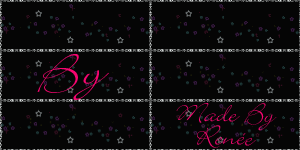
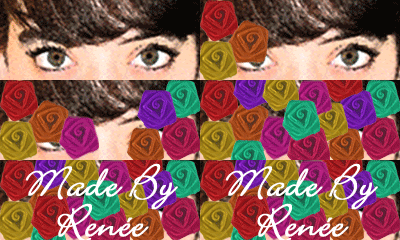
This is my first blinkie ever.. it isn't exactly what I would use on my blog, but I can tell you how it was done and I know you can make something beautiful!
1. Open a file. File>New. This one is 200 pixels X 80 pixels.. 300ppi, RGB. you can use transparent background if you like.
2. The bottom layer = the first image (frame) to be seen. For my example it is the Made By Renee with stars.
The first time I tried this I got it mixed up and kept putting my first image on top.
3. go to Layer > New > Layer. You can add another image or text on this layer. If you add text you will want to merge that with a colored layer to make a background. In my example I made a white background to match my first frame so that it looks like it is blinking and not just changing frames.
4. Keep making new Layers until you have all the images you want. In my example I have 7 layers. Made By Renee, stars layer, blink1, blink2, blink1 copy, blink2 copy and Made By Renee to end it (I did this so that image would stay up a little longer).
The blink1 image is a copy of my stars image with a few stars colored in yellow. My blink2 image is just a duplicate of blink1 with different stars colored in.
5. Now that you have it all done, click File > Save for Web.
6. On this page under Settings click GIF in the drop down box and also checkmark the animate box.
7. Go Down to the bottom of that screen (once you have clicked animate up top, the animation area will light up) and change the loop time to 1. You dont want to leave it on .2 because then your blinkie will go faster than the speed of light. And as Woody Allen says, that is: "..certainly not desirable, as one's hat keeps blowing off." hehe
8. Go to the top and click OK. save it to your computer and you have a new blinkie. You won't see it blink until you put it on a webpage or preview it in a post on blogger.
Hopefully I will learn more about Blinkies this week and be back with a more advanced tutorial (and lovely blinkie for my forum siggy!). I am looking forward to making a more "scrappy" looking one.
PS: I used Bickley Script for the font and Flowing Stars for the brush


Please click for entire view
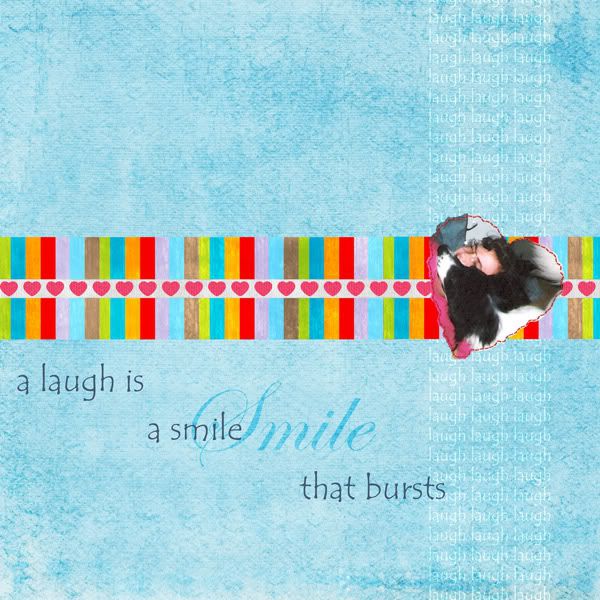
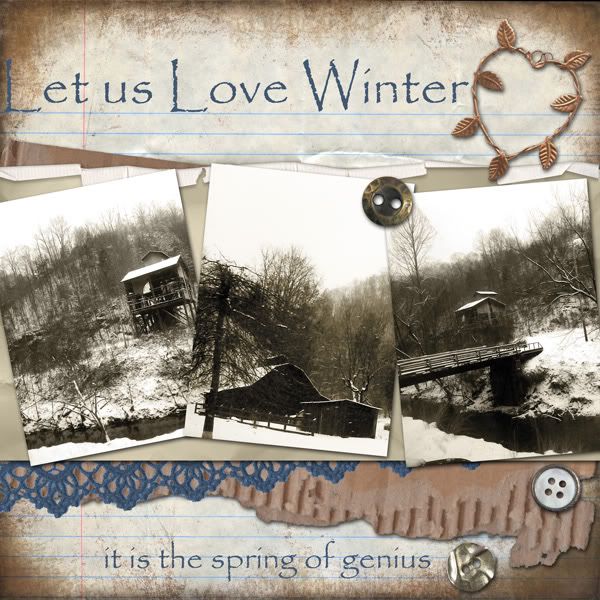
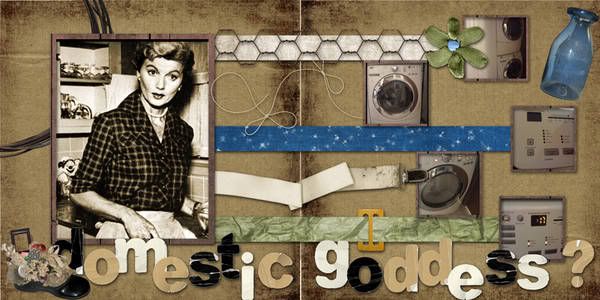
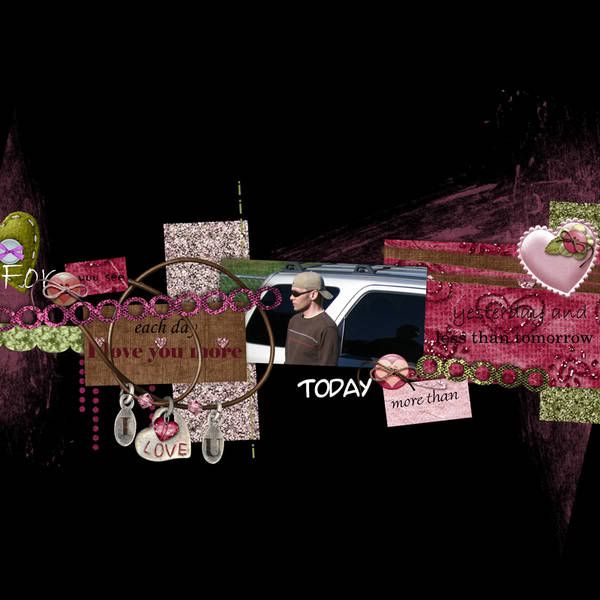
I made this layout for the Quote Challenge over at DSO (click to enlarge). It's being led by Andrea Dickinson and she has a super cute posting bonus just for playing!

| For List Click > | [−] |