Showing posts with label technique. Show all posts

Friday, March 13, 2009

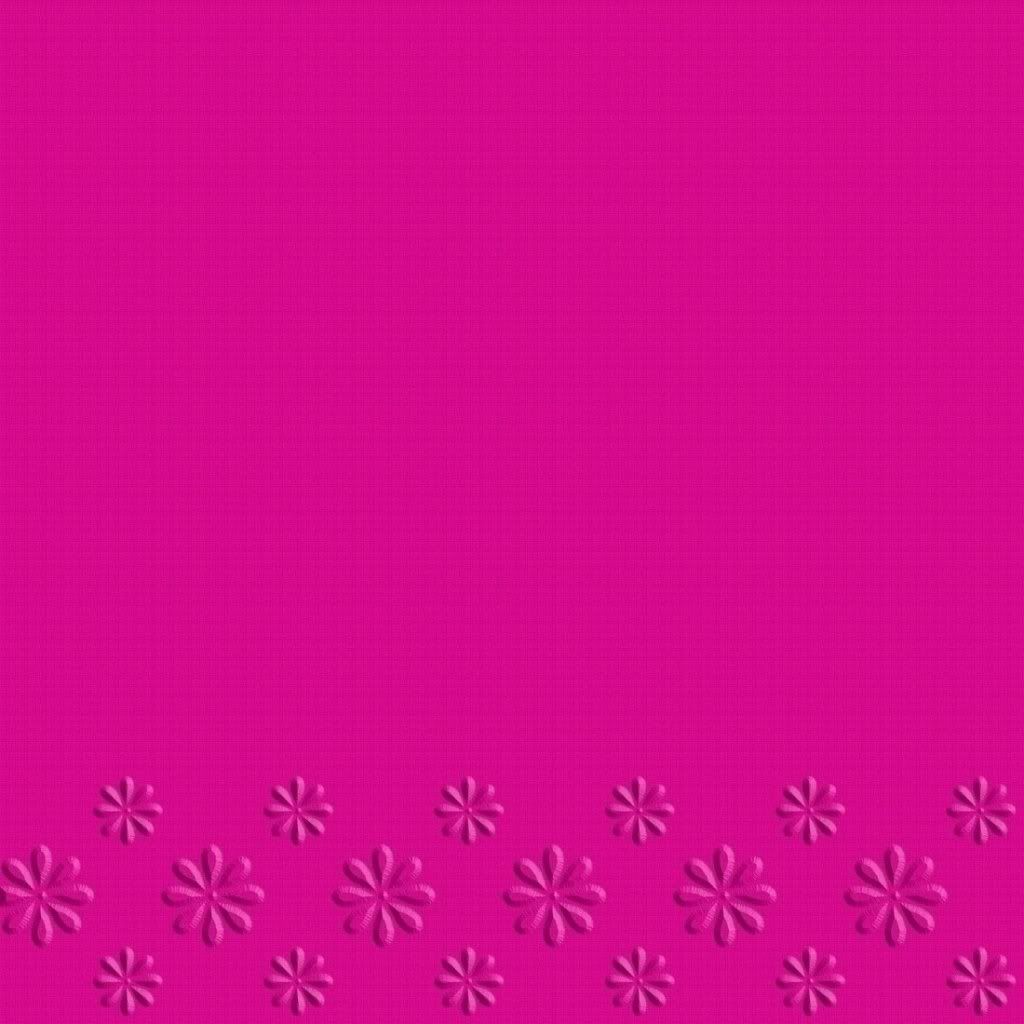
Making Embossed Paper (PSE)


Embossing is a really fun and easy technique that makes your paper pop!


1. Bring a background into PSE or make a new one and fill with color, then texture or pattern (if you like).


2. Create a new layer above your background. Using your brush, paint some designs. Painting them into a pattern looks really nice (using the Patterns in PSE won't work for this tute).


3. Duplicate your background layer and move it to the top, grouping it with your brushed pattern layer. You can't see your pattern yet, but don't worry! Leave your blending mode on normal for all layers.


4. Select your brushed pattern layer and apply a bevel to it. I used simple sharp inner, but you can use anything you like.


5. Play around with the opacity until you get the embossing to your liking. You can change the light source and see how different the embossing looks.


enjoy!
Love, Renee

Wednesday, March 04, 2009

March Scraplift Challenge!


New Challenges at DSO! This is for the March Scraplift Challenge led by Beth ! She has a beautiful posting bonus up (hint hint: it has butterflies!!)


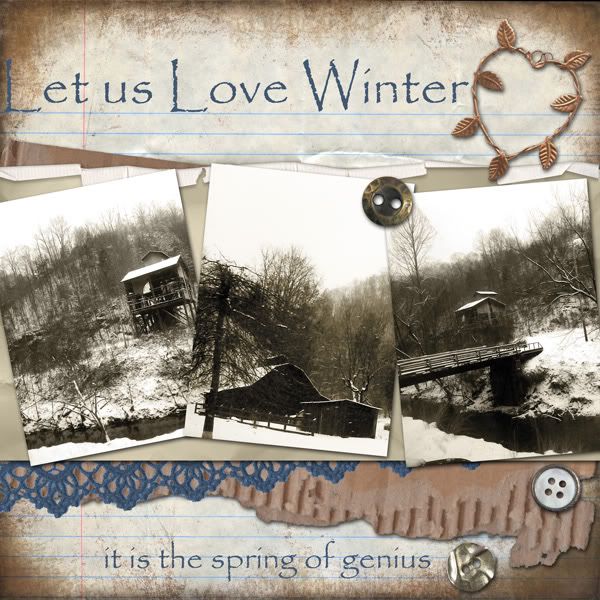
I really love these photos I took while driving. I changed them to "newspaper" black and white and then duplicated the layer. I changed the duplicate layer to Overlay, then sepia tone and finally turned the opacity down to 50%. I think it makes the BandW a little richer. There are some really nice actions out there for beautifying BandW but I forgot to load them into my PSE7.


papers, lace and bronze heart by Gunhild (CU items) and the buttons are from the scrappin cop (CU items). font used is Payrus.

Keep checking back for a new freebie sometime within the next week! It's for the Colour Challenge at DSO - and those are always fun! I'll give you 2 hints about my freebie:1) it has quilled flowers and 2) here's..


Love, Renee

Sunday, February 15, 2009

Random Photoshop Brush Tips

from Obsidian Dawn:

You know how the grass that comes with Photoshop fluctuates in color, each time that you use it? You can do that with any brush that you want! Here’s how.

  • Hit F5 to bring up your brushes tab
  • Choose “Color Dynamics”
  • One way to control the color is to choose two colors for your foreground and background colors. In the case of a blade of grass, say… light green and dark green. Then set the “Foreground/Background Jitter” bar somewhere between 25-75%. When you use your brush, it will now vary in color between the foreground and background colors that you chose!

Another way (or you can do the former and then ALSO do this) is by using the Hue, Saturation, and Brightness Jitter sliders.

  • Hue will change the color itself. Set it at about 10%, and your green will become both a blue-green and a yellow-green sometimes.
  • Saturation will change the intensity of the color. Set it at 20% or so, and your green will switch between a bright, vivid green to a slightly grayed-out green.
  • Brightness will change the darkness of the color. Set it at 20% or so, and your green will range between a light green and a darker green.


Play around with these settings, and you can achieve all kinds of color variations!

Other Brush Tips from Obsidian Dawn:

Under Brush Tip Shape Spacing: This will make the brush closer together or farther apart

Under Shape Dynamics Size Jitter: This will make the size vary more or less

Minimum Diameter: This will dictate the minimum size that the brush will be (as its varying in size)

Under Scattering Scatter: This makes the brush scatter about more or stay more along the path that you’re painting

Under Other Dynamics Opacity Jitter: This makes the brushes vary in opacity as they are painted - more or less

Love, Renee

Sunday, February 08, 2009

Element Sizes

I found this info:


Brads, eyelets, corners, other small elements - 3x3 canvas
Tags - 4x3 canvas; several minitags can be put on the same canvas.
Alphas - 2x3
Monograms and Coasters - 5x5
Frames - rectangle/oval - 5x7
Frames - square/round - 5x5 or 6x6
Fibers, ribbon, necklaces, belts - 16x16 and either 1, 2, or 3" in width, depending on the size you're making. 16x16 allows for corner to corner on the diagonal, but 13" is a good size to use as well.

Remember, you want to make your elements larger than the size they will be
used, to ensure that when said elements are reduced in size they will still have
the same detail.

posted by vkimmycat at Digi Kreations

Love, Renee

Friday, July 20, 2007

Brush Viewer/Converter

There are lots of wonderful brush sets for photoshop in the web... too many to install them all just to see what they look like! now you can have the preview of a set without having to install it... without having to run photoshop! You can even adjust thumbnails size and you can have the preview of the actual size of the brush… you can also try it out!
people who publish brush sets on their personal websites need to provide users with previews. This software is able to generate images for every single brush and can also generate the general image from the panel of the thumbnails you have visualised. I think it's great, don't you? ;)

Luigi made this wonderful program called abrviewer. Download it, unzip it and run it. Then upload your brushes. Now when you click on your filename you can see mini previews of the brushes without actually opening any programs.

(If your program can't use abr extensions, try Ro's tutorial )

Luigi's program can also convert these abr files to png. Check out this nice little tutorial on importing photshop brushes to Corel Photopaint. All you need to do is export the brush file (using Luigi's program). ABR Viewer automatically exports in png format.

I like this program because I keep all of my brushes on another hard drive. I simply load them into PSE as I need them (Scrap Girls has a nice tutorial too). I can open abr viewer and actually take a look at a brush before loading it.

I'm so excited, thanks Luigi.